MicroStrategy Set database for temp tables
24 Jan 2026
Difficulty ★★☆☆☆
Intro
When working with MicroStrategy, temporary tables are created as part of normal report execution. In many environments, however, you may not want these objects to be created in the source database. Granting the MicroStrategy database user CREATE and DELETE permissions on a production schema is often undesirable, and temporary objects can unnecessarily clutter the source system.
In this tutorial, I’ll show how to configure MicroStrategy to use a dedicated database (or schema) for temporary tables, keeping the source database clean while maintaining full reporting functionality.
Note: After changing these settings, you need to restart the Intelligence Server for the change to take effect.
First option: If you don’t care about the schema, you can configure the Database Instance to specify which database MicroStrategy should use for temporary tables.
Warning: If you include a schema in this setting, MicroStrategy will append it incorrectly as ‘db_name.schema..’ (with double dots ..).
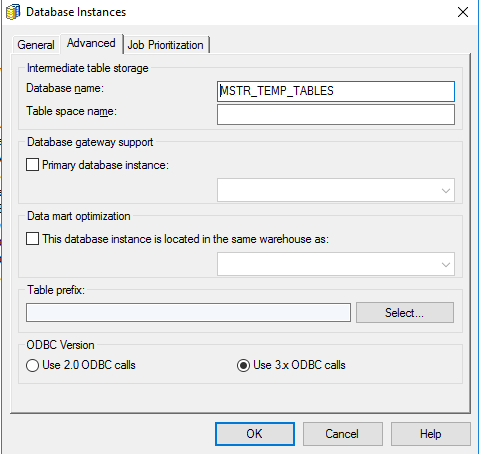
The resulting SQL query looks like this:
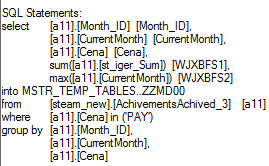
As you can see, the SQL creates temporary tables in the ‘MSTR_TEMP_TABLES’ database.
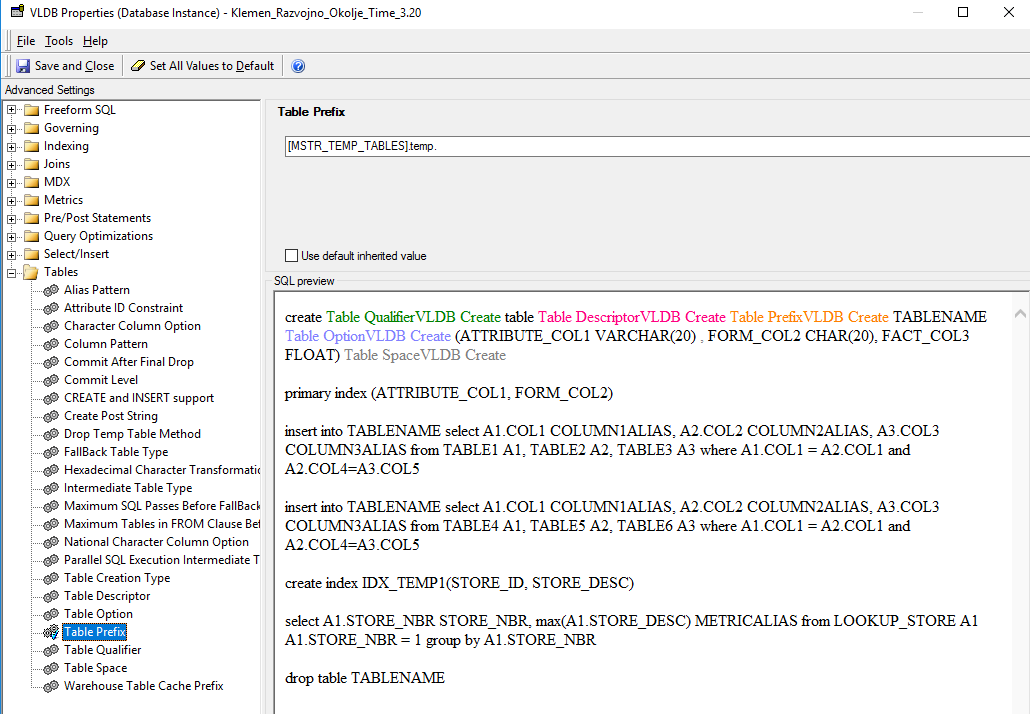
If you also want to use schemas, you need to set them in the Project Configuration under SQL Data Warehouses → VLDB Properties.
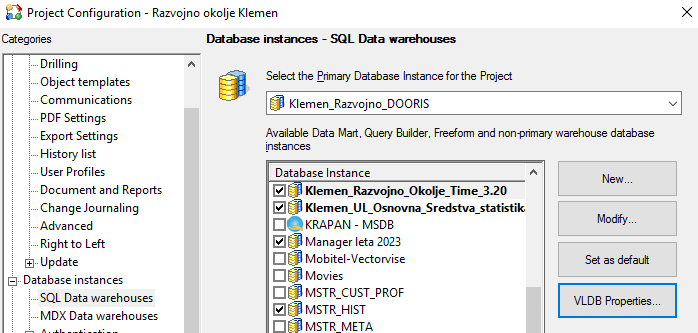
Under Tables, set the Table Prefix to your database and schema, separated by a dot (.), making sure it ends with a dot.
The resulting SQL query, including schema details, looks like this:
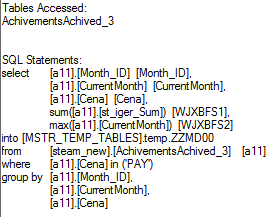
With this configuration, MicroStrategy will create all temporary tables in your designated database and schema, keeping the source system clean and organized.
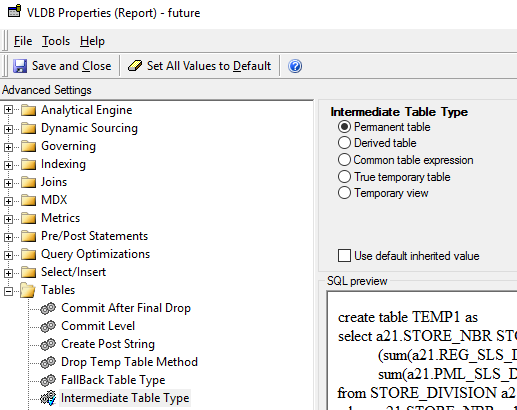
As a quick test, if Permanent Table isn’t your default setting, you can set the VLDB Properties of a specific report to Permanent Table to see how it works.